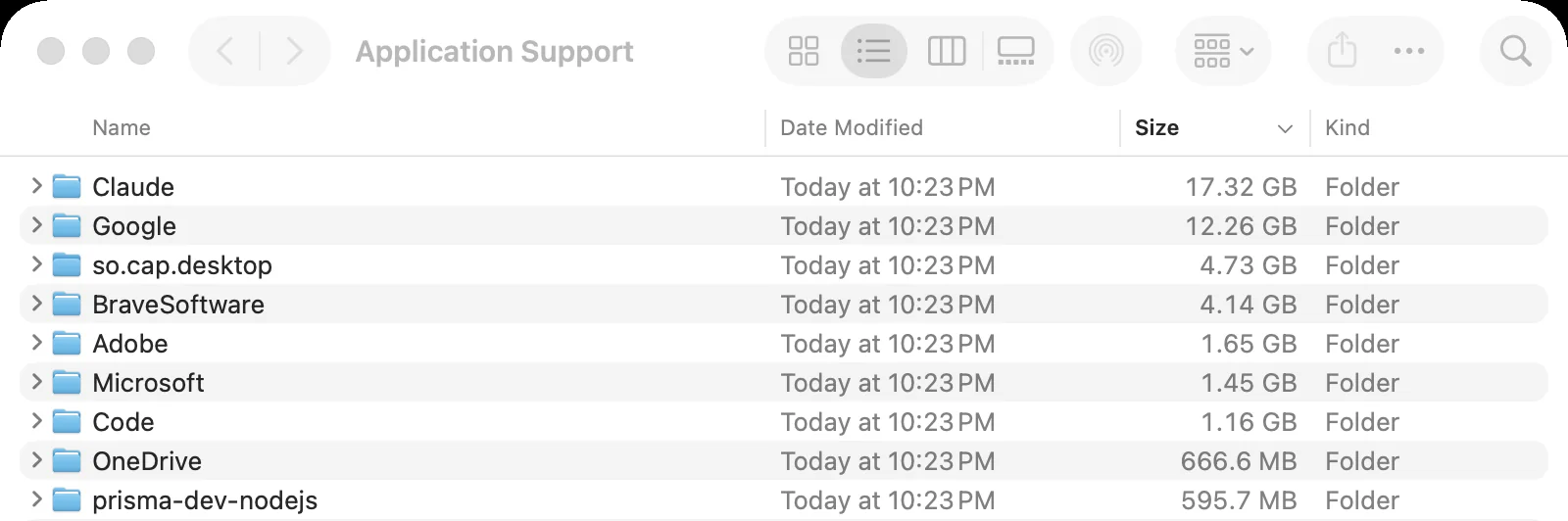
You're probably here because a disk tool showed you a huge folder with a boring name. On my Mac, Application Support is over 40 GB across 88 folders, more than any other folder in my Library.
So I went through it to see what's actually in there. Some of it is easy to clear. One folder that looked like ordinary app data turned out to hold 4.4 GB of my own screen recordings. That's exactly why you shouldn't delete first and ask later.
What is the Application Support folder?
It's where Mac apps keep the data they need to work, separate from the app itself. Each app usually gets its own folder, named after the app or its developer. Inside you'll find things like browser profiles, chat history, databases, downloaded models and app caches.
That's why dragging an app to the Trash doesn't remove everything. The app goes, but its folder here stays behind.
How to find it
Your copy is at ~/Library/Application Support. If you can't see it, that's normal: Finder hides the Library folder by default.
- In Finder, press ⇧ ⌘ G to open Go to Folder.
- Paste
~/Library/Application Supportand press Return. - Switch to list view (⌘ 2). Choose View → Show View Options, tick Calculate all sizes, then click the Size column.
What happens if you delete the whole folder?
Your Mac will keep running, and apps will create new folders as they need them. But every app starts over as if it were freshly installed:
- You'll be signed out of many apps and have to set them up again.
- Browser profiles can go too, including bookmarks, saved passwords and extensions.
- Anything stored only there is lost, such as local chats, recordings and project data.
If you've already done it and haven't emptied the Trash, drag the folder back now. Otherwise, restore it from a Time Machine backup.
Why it gets so big
Finder only shows you the top level. To see what's inside each app's folder, paste this into Terminal. It only measures and never deletes anything:
$ cd ~/Library/Application\ Support && du -sh */* 2>/dev/null | sort -h | tail -n 12
Here's what the biggest ones turned out to be, and why each needs different handling:
| Folder | Size | What it is | Verdict |
|---|---|---|---|
| Claude/vm_bundles | 12 GB | A virtual machine for the desktop app's Cowork feature | Check first |
| Google/Chrome | 11 GB | My browser profiles, plus Chrome's 4 GB on-device AI model | Leave |
| so.cap.desktop/recordings | 4.4 GB | My actual screen recordings from Cap | Check first |
| BraveSoftware/Brave-Browser | 3.9 GB | My Brave browser profile | Leave |
| Claude/Cache | 1.2 GB | A cache the app rebuilds on its own | Safe |
The usual advice is to hunt for leftovers from old apps. On my Mac, that wouldn't have helped much: all of the biggest folders belong to apps I still use. So look at what's big before you decide what to clear.
Two of these have their own fixes. Chrome's AI model needs a setting turned off, or Chrome downloads it again. And user reports say Claude's virtual machine comes back when you next use Cowork, with about a 10 GB download. I've left mine alone.
What's safe to delete, and what isn't
Safe to remove
- Folders for apps you've uninstalled. If the app is gone and you don't want its data back, its folder is doing nothing.
- Cache folders inside an app's folder, with names like
Cache,Code CacheandGPUCache. These are common in apps built on web technology, and the app rebuilds them.
Check first
- Folders for apps you still use. Open them and look at what's big. Recordings, projects and exports can live here, as mine did. Copy anything you want to keep before you remove it, or better, remove it from inside the app.
- Names you don't recognise. Folder names don't always match app names. Search the name online, and leave it if you can't tell what it belongs to.
Leave alone
- Browser profiles such as
Google/Chrome/Default. They hold your bookmarks, saved passwords and logins. - Apple's folders: anything starting with
com.apple, plusAddressBook,CallHistoryDBandCloudDocs. - MobileSync, if you have it. It holds your iPhone and iPad backups, so manage those in Finder instead, as this guide explains.
How to delete from it safely
- Back up first if you use Time Machine, and let it finish a run.
- Quit the app the folder belongs to. Check the menu bar too, since some apps keep running there.
- Move the folder to the Trash with ⌘ Delete. Avoid
rmcommands, which skip the Trash. - Open the app and check it still works. If something's wrong, quit it and put the folder back from the Trash.
- Wait a day or two, then empty the Trash. The space only comes back once you do.
If your Mac is still full after this, the space is probably somewhere else. Start with What Is System Data on Mac or the full guide, How to Free Up Space on Mac.
The faster way: see each app's real size
Finder makes you match folder names to apps yourself. That's why I built DiskMate. Its Apps page does the matching for you and shows what each app really takes up:
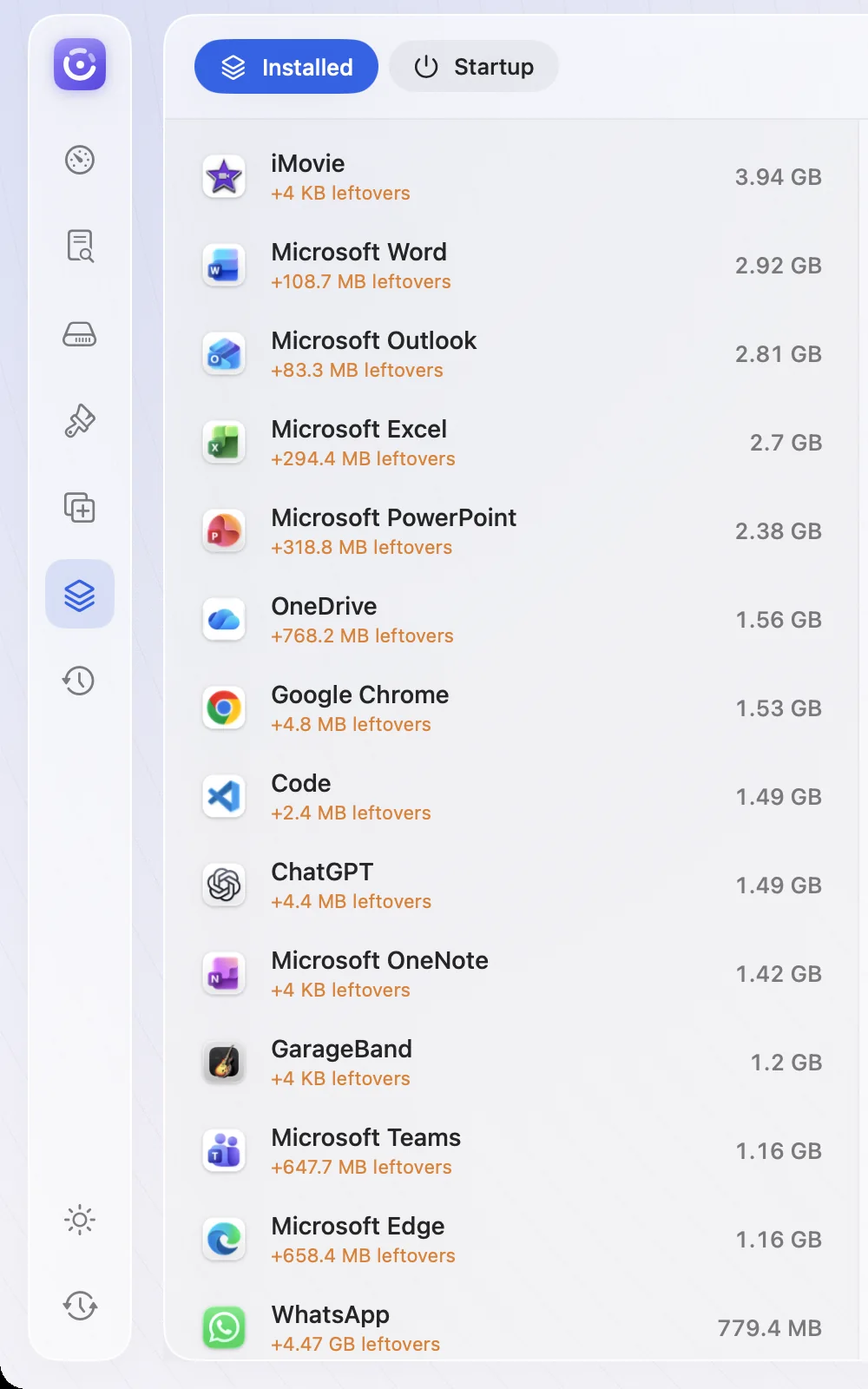
- Every app's full size. It adds up the files an app keeps in Application Support, Containers, Caches and other places in your Library.
- Every folder, ranked. The disk space analyzer does what the Terminal command above does, as a list or a map you can click into.
- You choose what goes. Everything is listed before it moves, and it all goes to the Trash first.
Frequently asked questions
Can I delete the Application Support folder on my Mac?+
Not the whole folder. It holds the data for the apps you use, so deleting it can sign you out, reset your settings and lose files stored inside it. You can safely remove the folders of apps you've already uninstalled, and cache folders inside the apps you keep.
What happens if I delete the Application Support folder?+
macOS keeps running and creates a new empty folder, but your apps lose their data. Expect to sign in again and set them up from scratch. Anything an app stored only there, such as browser profiles, chats or recordings, is lost unless you restore it from the Trash or a backup.
Where is the Application Support folder on a Mac?+
Your own copy is at ~/Library/Application Support. In Finder, press Shift-Command-G, paste that path and press Return. There's also a shared one at /Library/Application Support for all users on the Mac, which is best left alone.
Why can't I see the Application Support folder?+
It's inside your Library folder, which Finder hides by default. Hold the Option key while you open the Go menu and Library appears in the list, or use Go to Folder with the path ~/Library/Application Support.
Why is my Application Support folder so big?+
Usually one or two apps are responsible. Browser profiles, chat apps, virtual machines, AI models and screen recorders can each store many gigabytes there. Sort the folder by size or run the Terminal command in this guide to see which ones.
Is it safe to delete folders for apps I uninstalled?+
Yes, once you're sure the app is gone and you don't want its data back. Check the name first, because folder names don't always match the app. Move the folder to the Trash rather than deleting it outright, so you can put it back.
Can I delete the com.apple folders in Application Support?+
No. Folders that start with com.apple, along with ones like AddressBook, CallHistoryDB and CloudDocs, belong to macOS and Apple's apps. They're usually small, so there's little to gain and a real chance of causing problems.