I checked my own Mac while writing this. I have 14 projects with a node_modules folder, and together they take up 9.18 GB. Eight of them haven't changed in over 30 days. That's 5.05 GB sitting there for projects I'm not working on.
Clearing them is simple, as long as you aim the command at the right folder. Here's what I found, and the version I'd actually run. I tested the find and trash commands on macOS Tahoe 26 using throwaway folders.
Can you delete node_modules?
Yes, in your own projects. The folder only holds installed packages. Your project's package.json and lockfile record what belongs there, so one command rebuilds it. Your own code isn't in it, and it normally isn't in Git either.
The mistake to avoid: searching your whole home folder
It's tempting to run find from your home folder so you catch everything. I tried that search on my own Mac, without deleting anything. It found 56 folders, and only 14 were my projects:
| Where the folders were | Count | What would happen |
|---|---|---|
| My projects | 14 | Fine. Reinstall when needed |
~/Library, including Claude's app data and the pnpm store | 20 | Can break apps and tools |
| Hidden folders, including VS Code extensions like Prettier and Python | 22 | Can break extensions and tools |
Those 42 extra folders aren't junk. They're part of software you use, and they don't come back with a simple npm install. So there are two rules: search only your projects folder, and skip hidden folders.
How to find and delete every node_modules folder
List them, with sizes
Open Terminal, go to the folder that holds your projects, and run the search. It only measures, and it doesn't delete anything. Change the path to match your own folder:
$ cd ~/Projects$ find . -type d -name node_modules -prune -not -path '*/.*' -exec du -sh {} + | sort -h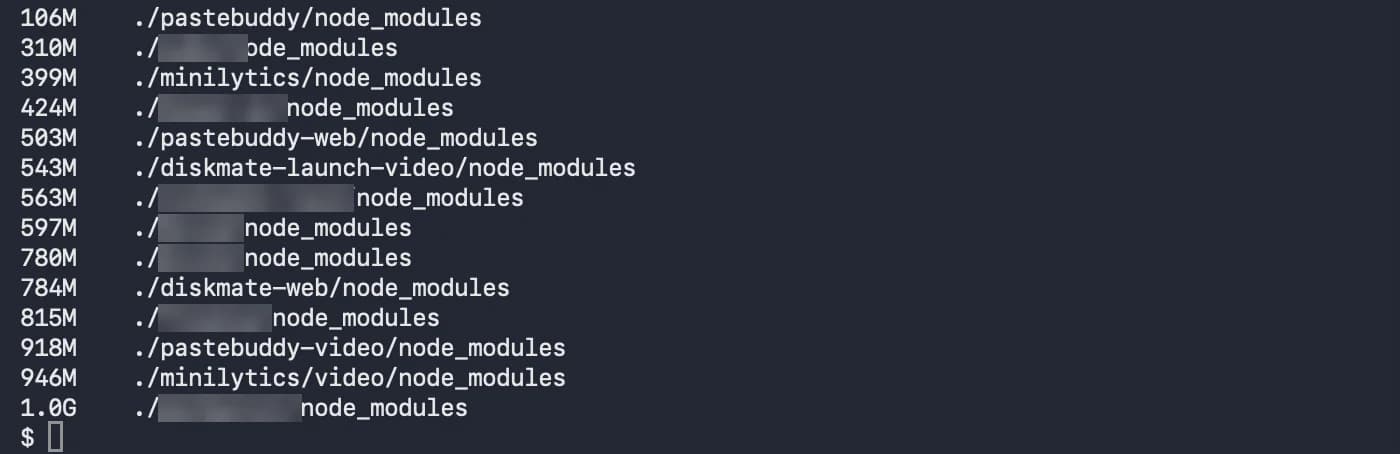
Narrow it to projects you're not using
You probably don't want to reinstall what you're working on today. Add -mtime +30 to list only folders that haven't changed in 30 days. It's a rough guide, so read the list before you go on:
$ find . -type d -name node_modules -prune -not -path '*/.*' -mtime +30 -exec du -sh {} + | sort -hMove them to the Trash
Stop any dev servers first. Then run the same search with trash at the end, so you can change your mind:
$ find . -type d -name node_modules -prune -not -path '*/.*' -mtime +30 -exec trash {} +When your projects still work, empty the Trash. That's when you get the space back. If you share files with pnpm, the gain can be smaller than the list suggests, because pnpm shares packages between projects.
How to bring one back
Go to the project and install again. Use the command that matches its lockfile:
| Lockfile in the project | Command |
|---|---|
package-lock.json | npm ci |
pnpm-lock.yaml | pnpm install |
yarn.lock | yarn install |
bun.lock | bun install |
One honest risk: a very old project may not install cleanly on today's Node, or a package may have disappeared. For an old project you still care about, write down its Node version before you delete anything.
The other half: package manager caches
Deleting node_modules doesn't touch the caches your package manager keeps. On my Mac, ~/.npm is another 5.5 GB, more than all my old node_modules folders put together. Your next install simply downloads whatever it needs again:
$ npm cache clean --force$ pnpm store pruneIf you also use Xcode or Docker, see clearing developer data. For everything else, start with How to Free Up Space on Mac.
The faster way: see every project in one list
Commands work fine, but you have to remember them and run them per folder. That's why I built DiskMate. Its developer cleanup does this in one window:
- Every node_modules folder, with its size, across everything you scanned.
- The rest of your developer clutter too: build folders, Xcode data, Android SDK images, and npm, pnpm, yarn, cargo and pip caches.
- You tick what goes. Everything moves to the Trash first, so you can put it back.
node_modules, build folders and package caches, adds them up, and moves only what you tick to the Trash. $5 once, no subscription.Frequently asked questions
Can I delete the node_modules folder?+
Yes, in your own projects. node_modules only holds installed packages, and npm install or pnpm install brings it back from package.json and your lockfile. Don't delete node_modules folders in hidden folders or in your Library, because those can belong to apps and tools you use.
How do I delete all node_modules folders on a Mac?+
Go to the folder that holds your projects, not your home folder. List them first with: find . -type d -name node_modules -prune -not -path '*/.*' -exec du -sh {} + | sort -h. When the list looks right, replace the du part to move them to the Trash: find . -type d -name node_modules -prune -not -path '*/.*' -exec trash {} +.
How do I delete node_modules recursively?+
Use find with -prune, as in the commands in this guide. -prune stops find from going inside each node_modules folder it matches, so it skips the thousands of nested packages and the command runs much faster.
Why is node_modules so big?+
Every project gets its own copy of its dependencies and all of their dependencies. Build tools, video renderers and native binaries are especially large. On my Mac they range from about 100 MB to 1 GB per project.
Should I delete node_modules and reinstall to fix a problem?+
It's a common and safe fix for broken dependencies. Keep your lockfile so you get the same versions, then run npm ci for npm projects or pnpm install for pnpm projects. Only delete the lockfile if you actually want newer versions.
Will deleting node_modules break my project?+
Not as long as package.json and the lockfile are still there. The risk is with old projects: if the packages are no longer available or don't support your current Node version, the reinstall can fail. Note the Node version first for anything you'd hate to lose.
Does deleting node_modules clear the npm cache?+
No. npm keeps its own cache in ~/.npm, and pnpm keeps a separate store. On my Mac the npm cache alone is 5.5 GB. Clear it with npm cache clean --force, and clear unused pnpm packages with pnpm store prune.