Most answers to this question are a single number. I looked for where those numbers come from, and I could not find one that comes from Apple. So this guide does something else. It shows what Apple actually says, what the same amount means on different disk sizes, and how to decide if yours is worth your time.
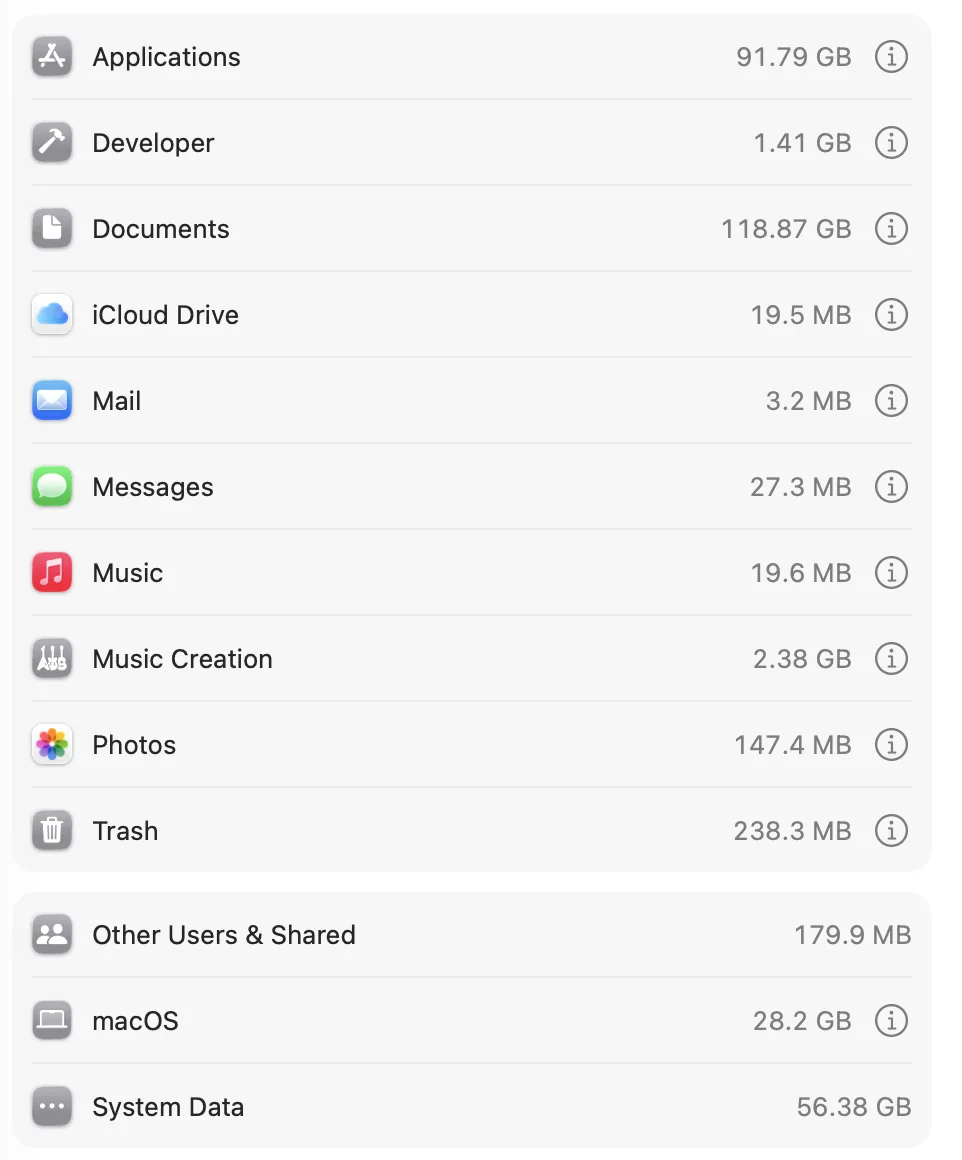
My own Mac is the example. System Data showed 56.38 GB in Storage settings when I took the screenshot below. That is on my 1 TB Mac, where it is about 6% of the disk. Many people have a 256 GB or 512 GB Mac, and the same 56 GB would be a much bigger deal there.
Your list will not match mine. You may see other folders, and that is fine. Use the same steps.
If you already know your System Data is too big and you want to shrink it, go straight to the 9 steps to clear System Data.
Is there a normal number?
No. Apple describes System Data in two places, and neither gives a size. The Mac User Guide says it holds files that don't fall into the other categories, such as log files, caches and VM files, and that “the category varies in size depending on the current state of your Mac”. Apple's storage support page calls it a general category for “all Apple and third-party files that don't belong to any more specific category”.
Other guides do give numbers. CleanMyMac's guide says around 12 GB is normal. Setapp's guide says 12 to 25 GB is healthy. I checked both pages on 13 November 2026. They may be fair rules of thumb, but I could not find either number in Apple's own pages, and neither one takes your disk size into account.
One thing that clears up a lot of confusion: System Data is not macOS itself. In the screenshot above, macOS has its own row. Apple's guide says that row holds the system's own apps and files. System Data is everything else that has no label.
What the same System Data means on each disk size
A size in gigabytes tells you little until you put it next to the disk. This table takes the two numbers from the guides above, my own number, and one large example, and shows each as a share of a 256 GB, 512 GB and 1 TB disk. It is plain division, rounded to the nearest whole percent.
| System Data | On a 256 GB Mac | On a 512 GB Mac | On a 1 TB Mac |
|---|---|---|---|
| 12 GB | 5% | 2% | 1% |
| 25 GB | 10% | 5% | 3% |
| 56 GB (mine) | 22% | 11% | 6% |
| 100 GB | 39% | 20% | 10% |
Read across the third row. On my 1 TB Mac, 56 GB is small change. On a 256 GB Mac the same files would take more than a fifth of the disk. Same number, very different answer to “is this normal?”.
That is why I don't think a single figure is honest. A better question is: how much of my disk is it, and do I need that room?
Why the number moves on its own
System Data is not measured directly. Howard Oakley, who writes about macOS storage in detail, reports that on macOS Tahoe Storage settings appears to add up the other categories and put the remainder into System Data. In an earlier article he calls the result a rough estimate. So when another row is recounted, System Data shifts too.
Time Machine is the other reason. Apple's page on local snapshots says your Mac saves a snapshot of the startup disk about every hour and keeps it for 24 hours. Oakley notes that this space often lands in System Data. Apple also says the Mac counts snapshot space as available storage and removes snapshots when the room is needed. So part of a large System Data number can be space your Mac will hand back without you doing anything.
The practical point: don't judge it from one look. If it jumped after you deleted a lot of files, check again the next day before you worry.
Check yours in 4 steps
Open Storage settings and let it finish
Choose Apple menu → System Settings → General → Storage. Wait until the rows stop updating, then note two things: the System Data row, and the used and total figures at the top.
Work out its share of your disk
Divide System Data by your disk size and multiply by 100. For me that is 56.38 ÷ 1,000 × 100, which is about 6%. Or find the closest row in the table above.
Check how much free space you have
This matters more than the System Data number. The Storage bar shows it, or you can ask Terminal. Both commands below only read. The first reports your disk, the second adds up your Library folder, where most of these files live:
$ df -H /System/Volumes/Data$ du -sh ~/Library ~/Library/Caches ~/Library/"Application Support" 2>/dev/nullI run the same two checks from a small script of my own. This is what it printed:
$ bash measure-dev-storage.shDisk size: 995GUsed: 294GFree: 674GUsed percent: 31%~/Library 68G~/Library/Caches 14G~/Library/Application Support 43GWith 674 GB free, my 56 GB of System Data costs me nothing, and there is no reason to chase it. Now picture those folders on a 256 GB Mac. My 68 GB Library alone would be 27% of that disk, and the 43 GB in Application Support would be 17%. On that Mac I would be clearing things today.
My Library is bigger than my System Data, and that is expected. The two were measured weeks apart, and some of what sits in Library can be counted in other rows, such as Mail and Messages. Library shows you where to look. It is not an exact breakdown.
If it is a big share, see what is inside
Storage settings has no breakdown for System Data, so sort your Library folders by size instead. The steps are in how to see what's inside your System Data. On my Mac the largest part by far is Application Support, which I cover in Can I Delete the Application Support Folder?
When to act, and when to leave it
| What you see | What to do |
|---|---|
| Plenty of free space, whatever the System Data number | Leave it. Caches are doing their job. |
| The number jumped right after you deleted files | Wait a day. It may be local snapshots, which macOS removes by itself. |
| Low on space, and System Data is one of your biggest rows | Worth your time. Follow the steps in the System Data guide. |
| Low on space, but Documents, Photos or Applications are bigger | Start with those rows. They are easier to look through. |
For the third row, the System Data guide goes through caches, old iPhone backups, snapshots and developer files, easiest first. For the fourth, use How to Free Up Space on Mac.
The faster way: see the share without the maths
Storage settings gives you one number for System Data and no way to open it. That gap is why I built DiskMate. Its disk space analyzer ranks every folder by size, including the hidden ones in Library, so you can see what the number is made of. Its cleanup page separates what is safe to clear from what needs a look. Nothing goes until you tick it, and it moves to the Trash first.
Frequently asked questions
How much System Data is normal on a Mac?+
There is no official number. Apple does not publish one, and its Mac User Guide says the category changes in size with the state of your Mac. Judge it by its share of your disk and by how much free space you have. 56 GB is about 6% of a 1 TB Mac but 22% of a 256 GB Mac.
Is 50 GB of System Data normal on a Mac?+
It depends on the disk. 50 GB is 5% of a 1 TB Mac, about 10% of a 512 GB Mac and about 20% of a 256 GB Mac. If you have plenty of free space, you can leave it. If your Mac is nearly full, 50 GB is worth looking into, starting with caches, old phone backups and developer files.
Is 100 GB of System Data too much?+
On a 256 GB Mac, 100 GB is 39% of the whole disk, so yes, it is worth finding out what is in it. On a 1 TB Mac it is 10%, and it only matters if you need the room. In both cases there is often one large thing behind a number that size, such as backups, a virtual machine or developer data.
Why does my System Data keep changing?+
Two reasons. System Data is whatever macOS cannot place in another category, so it shifts when other categories are recounted. And if you use Time Machine, your Mac saves a local snapshot about every hour and keeps it for 24 hours. Apple says the space used by snapshots is counted as available storage, and macOS removes them when the space is needed.
Is System Data the same as macOS?+
No. macOS has its own row in Storage settings, which holds the system itself and built-in apps. System Data is a separate row for files that fit no other category, such as caches, logs and app data. On my Mac the macOS row is 28.2 GB and System Data is 56.38 GB.
Does a bigger disk mean more System Data?+
Not by itself. System Data grows with what you install and do, not with the size of the disk. A bigger disk only makes the same amount matter less, because it is a smaller share of the whole.
Should I clear System Data if I have plenty of free space?+
No. Much of it is caches that make apps faster and data your apps need. Clearing it when you are not short on space gains you nothing. Come back to it when your Mac warns you about storage or an update will not fit.